
How to attach documents
Scan, photograph, or import the warranty, policy, or receipt — and keep it with its reminder.
Keep the paperwork where it belongs: attached to the reminder it relates to. Everyday Cue stores documents on your device and mirrors them only to your private iCloud.
Add a document
- Open a reminder and scroll to Documents.
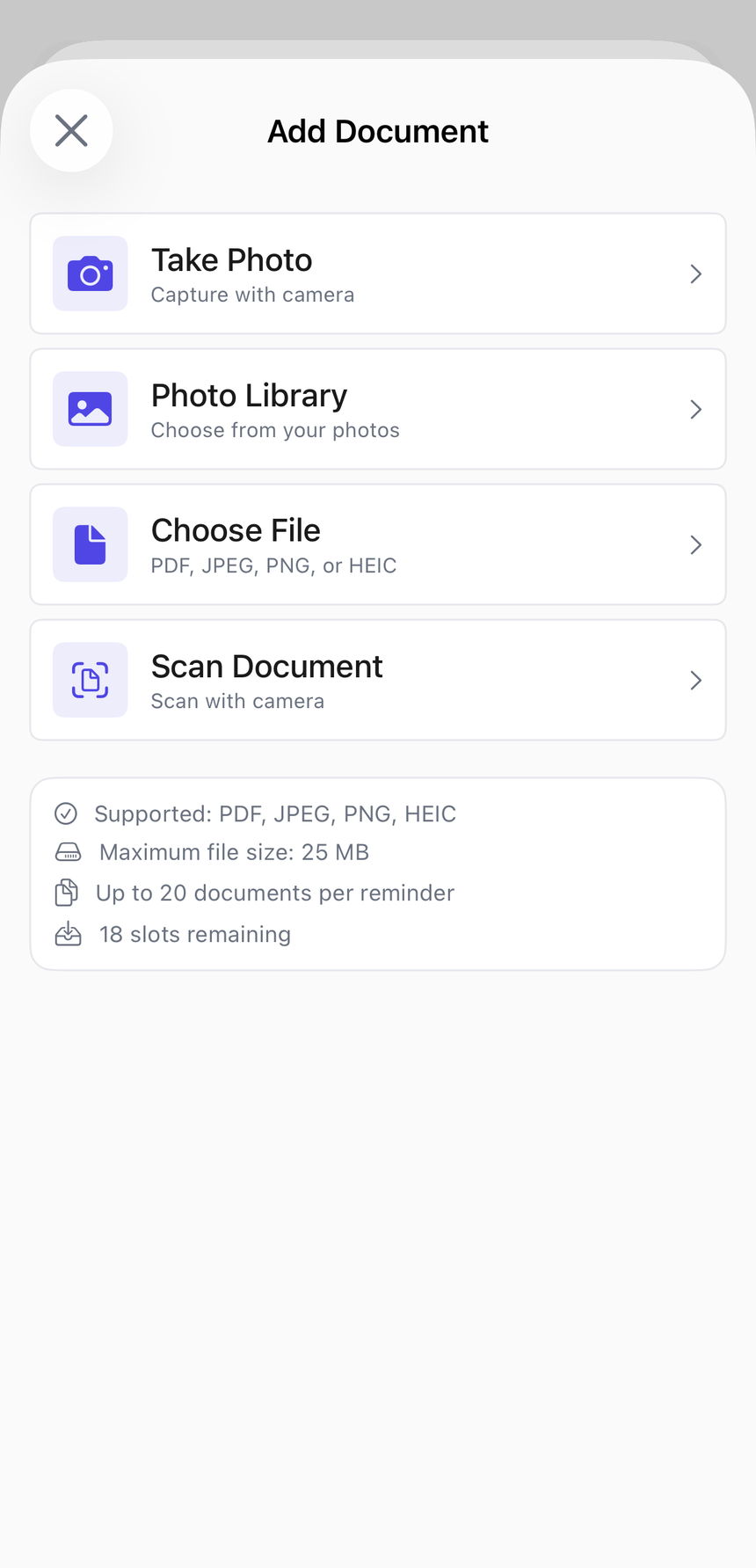
- Tap Add Document and choose how to bring it in:
- Scan with the camera — uses iOS's built-in scanner with edge detection and perspective correction.
- Take a photo with the camera.
- Choose from your Photo Library.
- Pick a file from the Files app.
 1234
1234- Take Photo — capture with the camera.
- Photo Library — choose an existing photo.
- Choose File — a PDF or image from Files.
- Scan Document — scan with edge detection.
Everyday Cue asks for camera or photo access only when you tap the option that needs it. Decline either and the others still work.
Supported file types
PDF, JPEG, PNG, and HEIC — these are the only supported types. The scanner, camera, Photo Library, and the Files picker all resolve to these four formats; other file types can't be attached.
View a document
Tap a document's thumbnail. Everyday Cue previews your PDFs and images with iOS's Quick Look.
Delete a document
- In the reminder's Documents section, swipe left on the document row.
- Tap Delete.
The file is removed from the app's container, and from your iCloud container on the next sync.
Where documents live
On your device, inside the app's protected container — and, if iCloud sync is on, mirrored to your own private iCloud. They're never sent to us or any third party. More on the privacy model in iCloud sync.
Frequently asked questions
Is there a file size limit for attachments? Everyday Cue doesn't impose its own limit, but very large files (over 50 MB) may be slow to sync over iCloud. For practical use, scanned PDFs and photos are typically well under 10 MB.
Can I attach more than one document to a reminder? Yes. The Documents section of a reminder holds as many files as you need — one for the policy, one for the renewal notice, one for the receipt.
What happens to my documents if I delete a reminder? The files are deleted from the app's container along with the reminder. If iCloud sync is on, they're removed from your iCloud container on the next sync. There's no recovery after deletion — archive instead of delete if you might want the files later.
Can I open a document from my files app and send it to Everyday Cue? Not currently via Share Sheet. The standard flow is to go to the reminder first, then add the document. You can pick a PDF, JPEG, PNG, or HEIC file from the Files app using the "Choose File" option.
Do attached documents appear in the iOS Files app? No. Documents are stored in a private app container, not exposed to Files. Access them only through Everyday Cue.
Related
See it in action
- Car insurance renewal reminder — attach your policy document and renewal notice
- Passport expiration tracker — scan and store a passport copy alongside its expiration alert
- Professional license renewal tracker — keep your license certificate with the reminder that tracks its renewal