
How to use the dashboard
Read the status counts, filter by day, week, or month, and act in batches or a single swipe.
The Dashboard is Everyday Cue's home screen. It gathers every reminder into one calm view so you can see what's due, what's slipping, and handle it fast.
Read the status counts
A row of counts across the top tells you, at a glance, how your reminders break down — Total, Urgent, Due Soon, and more. Tap a count to filter the list to just those reminders.
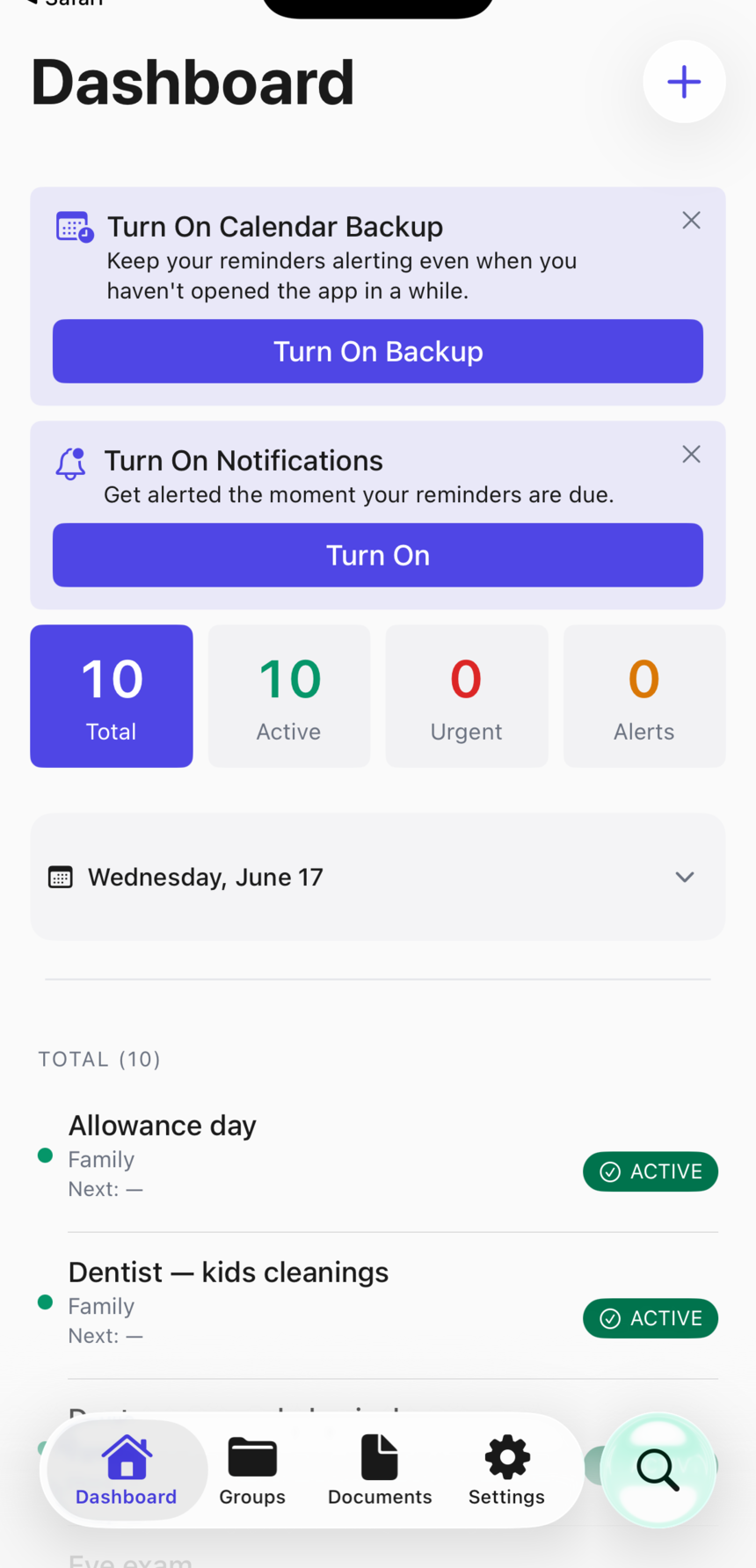
Filter by day, week, or month
Below the counts, the Calendar Card scopes the list to a date range.
- Tap a day in the card to see reminders tied to it.
- Use the Week / Month / None toggles to widen or clear the range.
The calendar filter combines with the status filters, so you can ask for something specific like "Urgent reminders due this week."
Act with a swipe
On any reminder row:
- Swipe left to complete the current occurrence.
- Swipe right to archive the reminder.
Completing or archiving shows a brief undo toast, so a stray swipe is easy to take back.
Handle several at once
- Tap the Complete / Skip action button above the list (it reads Acknowledge on the Alerts tab) to enter select mode.
- Tap the reminders you want.
- Choose a batch action: Mark Complete or Mark Skipped (or Mark Acknowledged on the Alerts tab).
Some actions enable only when your selection contains reminders they apply to.
The Alerts tab
Switch to the Alerts tab for a journal of pending notifications — including any beyond the iOS on-device cap, which the main list can't show. Acknowledge an alert here to clear it from the active list without changing the reminder itself.
iOS limits any app to 64 scheduled notifications at once. Everyday Cue uses up to 60 of those slots for your reminders and keeps a little headroom for a single overflow summary. The Alerts tab shows the full picture — all scheduled alerts, in order — so nothing is hidden.
Frequently asked questions
The status counts and the list don't seem to match. What's happening? The Calendar Card is probably active. When a day, week, or month is selected, the list and counts both reflect that filter. Tap None on the Calendar Card to clear the date scope and see everything.
What does "Urgent" mean in the status counts? Urgent groups your most time-sensitive reminders — anything showing as Overdue, Due Soon, Expiring Soon, or Expired. It's a quick way to spot what needs attention now without scrolling the full list.
I have 80 scheduled alerts. The Alerts tab shows all 80, but my iPhone only rings for some of them. Is that a bug? No. iOS caps the number of notifications any app can have pending in the system queue at 64; Everyday Cue uses 60 of those slots. The Alerts tab intentionally shows everything so you can see what's coming, even if iOS hasn't queued it yet. Everyday Cue queues the next 60 in chronological order; as earlier ones fire and are cleared, later ones move into the queue automatically.
Can I use the dashboard to act on reminders in groups other than the one I'm viewing? Yes. The dashboard shows reminders across all your groups. Status filters and the calendar filter apply across groups — you don't need to navigate into individual groups to take action.