
How to set a repeating schedule
Intervals in days, weeks, months, or years; weekday rules like "the last Friday"; up to ten advance alerts.
Repeating schedules are where Everyday Cue bends to real life. A reminder can repeat on almost any cadence, and you can stack several schedules on a single reminder when one rule isn't enough.
Add a repeating schedule
- Open the reminder and tap Edit.
- Scroll to Schedules and add a schedule that repeats.
- Choose the interval — every N days, weeks, months, or years.
- (Optional) Add weekday rules to fire only on certain days.
- Set your alert offsets — how far ahead you want the heads-up.
- Tap Save.
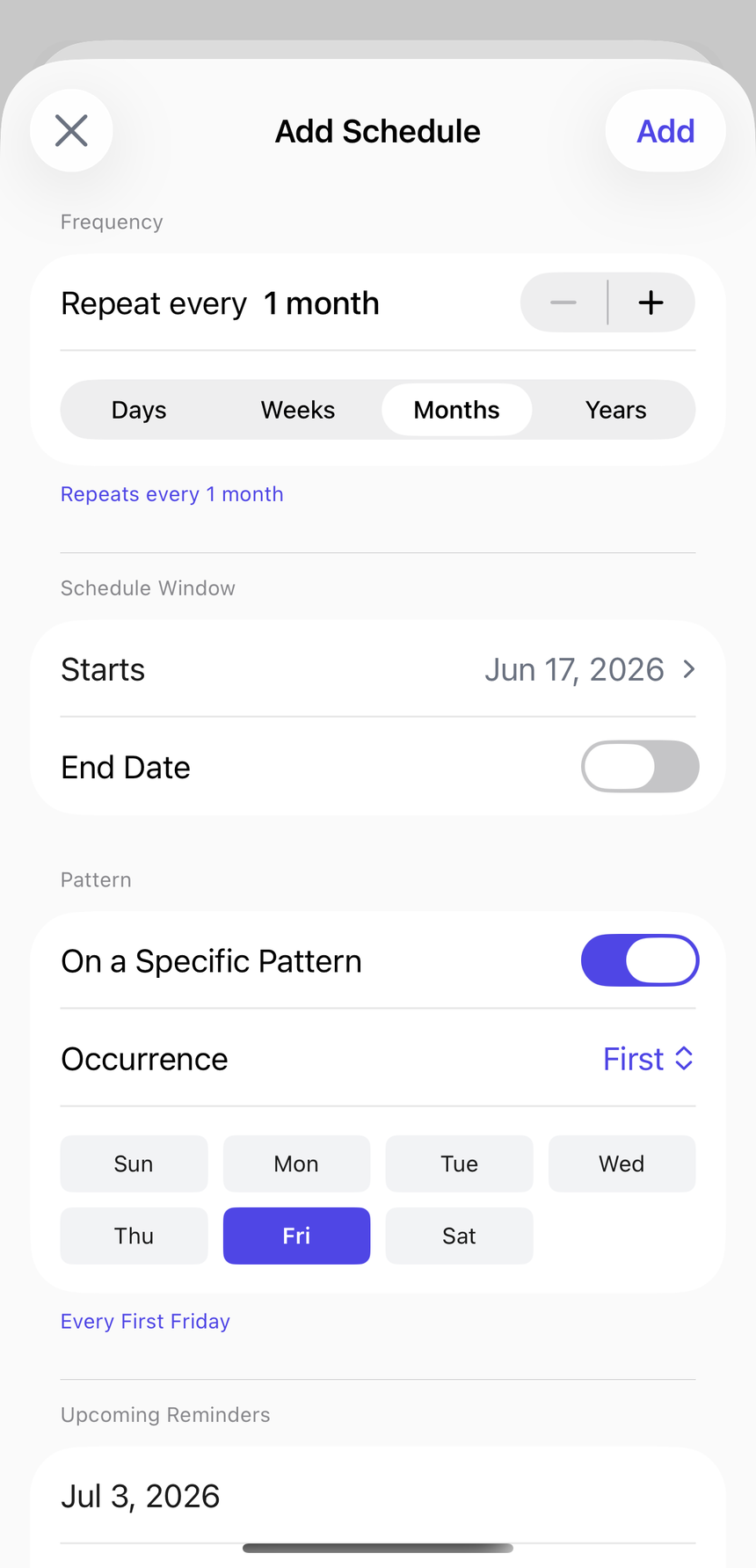 123
123- The interval — how often it repeats.
- The unit — days, weeks, months, or years.
- An optional weekday rule, like "the first Friday."
Weekday rules, including "the last Friday"
Weekday rules pin a schedule to specific days of the week. Pick one or more weekdays, and the schedule fires only on those days within its interval.
For patterns like "the last Friday of every month," choose a single weekday and an ordinal (first, second, … last). Ordinal rules need exactly one weekday selected — the last Friday makes sense, the last Friday-or-Monday doesn't.
Tip: weekday names always follow your device's language and calendar — no need to think about formatting.
Advance alerts (alert offsets)
An alert offset is how many days before an occurrence you want to be notified. A reminder supports up to 10 advance offsets — shared across all its schedules — so an important reminder can warn you a week out, the day before, and the morning of.
- Offsets range from 0 (same day) to 90 days before.
- No duplicates — each offset is distinct.
Stack several schedules on one reminder
Some things follow more than one rhythm. You can add multiple schedules to a single reminder, each with its own interval and weekday rules. For example, a "Backups" reminder might run weekly and get a separate quarterly deep-check schedule.
Add as many as you need under Schedules — they all live on the same reminder and report into the same dashboard status.
Editing later
Reopen Edit any time to change an interval, adjust offsets, or remove a schedule. Everyday Cue safely regenerates upcoming occurrences when you save — your past actions stay intact.
Frequently asked questions
If I edit a schedule, do I lose my history? No. Everyday Cue only regenerates future occurrences. Everything you've already acted on — completed, skipped, archived — stays in place.
Can I have multiple schedules on one reminder? Yes. Open the reminder, tap Edit, and add as many schedules as you need under the Schedules section. Each can have a different interval and weekday rules; alert offsets are set once and apply to the whole reminder.
What are the maximum interval values? Days: 36,500. Weeks: 5,200. Months: 1,200. Years: 100. These cover roughly a 100-year horizon in any unit.
What happens when the due date arrives? Everyday Cue fires your alert at the time you've set. The reminder moves to Overdue or Due Soon status on the Dashboard depending on your "Soon" window (default 7 days, adjustable up to 90). Mark it complete, skip it, or let it sit — the choice is yours.
What if I want a reminder that fires once and never again? Use a one-time event instead of a repeating schedule. See Add a one-time event.
Related
See it in action
- Car insurance renewal reminder — annual renewal on a repeating yearly schedule
- Vehicle registration renewal reminder — yearly cadence with advance alerts
- Prescription refill reminder — repeating schedule with offsets tuned to a supply window