Your first five minutes with Everyday Cue
Create a group, add a reminder, give it a schedule, and read your dashboard — start to finish.
Welcome. This walkthrough gets you from a blank app to a working reminder in about five minutes. Follow it once and the rest of Everyday Cue will feel familiar.
Tip: in a hurry to explore? Settings › Data Management › Load Example Data fills the app with a ready-made set of realistic reminders so you can poke around first. You can delete them any time.
1. Make a group
A group is a folder for related reminders — Home, Health, Bills, whatever fits. Every reminder lives in one group.
- On first launch, the app offers to create your first group. Give it a name and tap Save.
- Already past onboarding? Open the Groups tab and tap + to add one.
Everyday Cue opens the new group for you automatically, ready for its first reminder.
2. Add a reminder
- Inside the group (or on the Dashboard), tap the + button.
- Type a name — Pay rent, Renew passport, Water the plants.
- Tap Save.
That's a complete reminder. You can stop here for a simple to-do, or give it a rhythm in the next step.
3. Give it a schedule
A schedule tells Everyday Cue when to nudge you.
- Open the reminder and tap Edit.
- Scroll to Schedules and add one:
- Repeats — every N days, weeks, months, or years (with optional weekday rules).
- One-time — a single date that doesn't recur.
- Choose how far ahead you want the heads-up (your alert offsets — say, 7 days before and again on the day).
- Tap Save.
New to schedules? Set a repeating schedule covers intervals, weekday rules like "the last Friday," and stacking several schedules on one reminder.
4. Read your dashboard
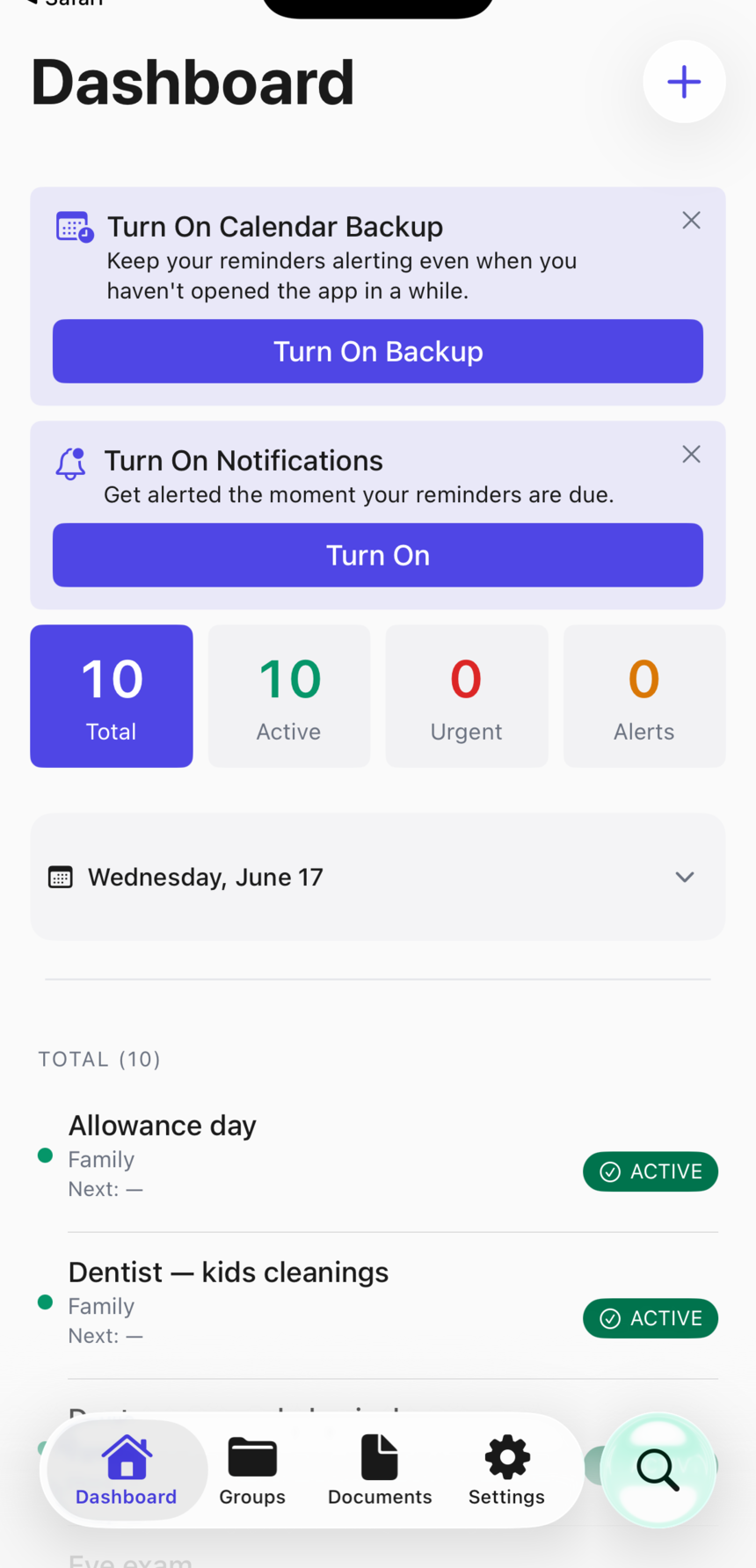
The Dashboard is your home base. At a glance it shows:
- Status counts — how many reminders are total, urgent, due soon, and more.
- A calendar filter — tap a day, week, or month to focus the list.
- Swipe actions — swipe a row to complete or archive it.
That's the whole loop: capture it, schedule it, and let the dashboard keep you honest.
Frequently asked questions
Do I have to create a group before adding a reminder? Yes. Every reminder belongs to one group. On first launch the app walks you through creating your first group automatically.
What's the fastest way to get a feel for the app? Settings › Data Management › Load Example Data populates the app with a set of sample reminders. It's safe — you can delete them any time.
Can I add more than one schedule to a single reminder? Yes. Edit the reminder and add as many recurring intervals or one-time events as you need.
Does Everyday Cue require an account or internet connection? Neither. Reminders live on your device with no account or sign-up. iCloud sync is optional and uses your existing Apple ID.
Where to go next
- Manage notifications — set your default time, pause, snooze, and more.
- Turn on the calendar backstop — keep alerts coming during long quiet stretches.
- Use the dashboard — filters, batch actions, and status at a glance.
Stuck on anything? The Help Center has a guide for it, and you can always email us.